The steps below illustrate the steps that HR Agents can take to make the HR Case Dashboard their central location for information pertaining to their case work.
Save the dashboard as your HRSD home screen in the native (back-end) view of ServiceNow for ease of access.
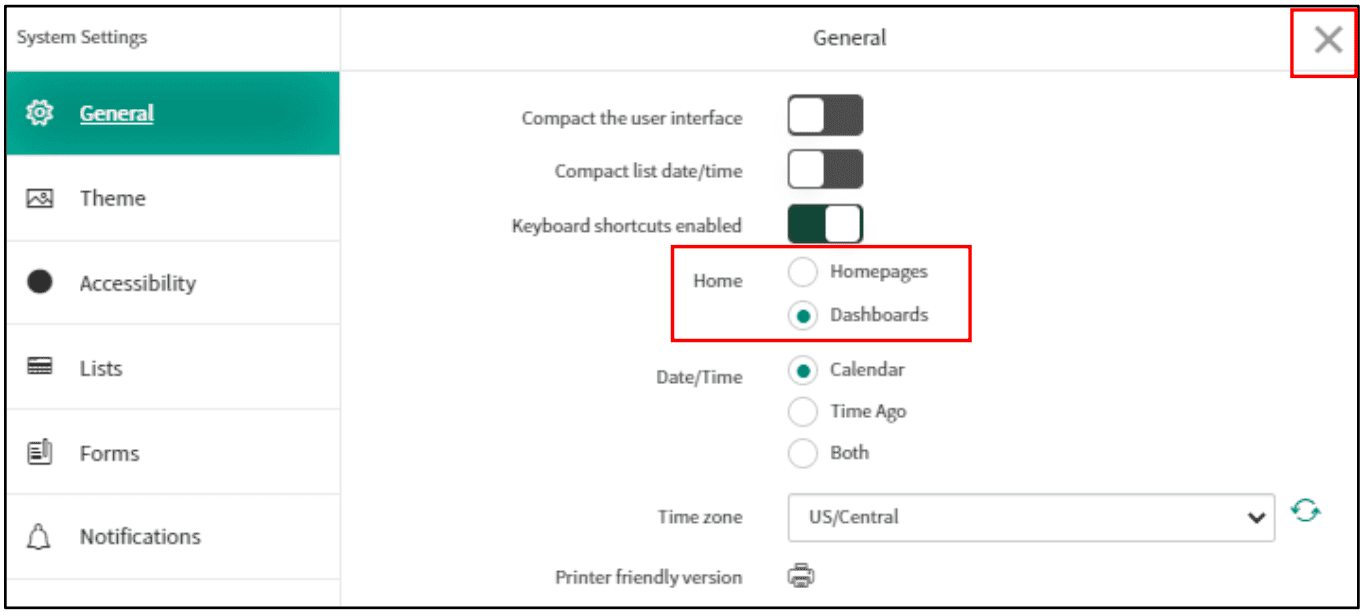
1. Once you’re logged into HRSD, navigate to, and select the ‘settings’ icon in the upper right-hand corner of the page, to the right of your username.

2. Within the “General” tab, locate the “Home” section and select the “Dashboards” radio button.
3. Click the “X” in the upper right-hand corner – your selection will be saved.
Save the dashboard as a favorite.
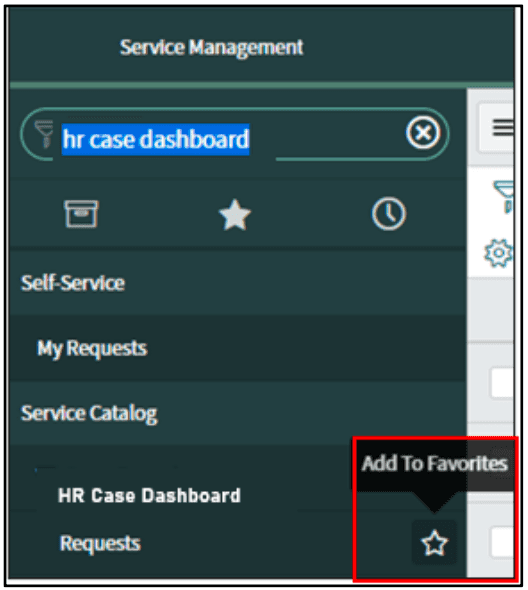
1. In the Filter navigator search bar, type “HR Case Dashboard”
2. Hover over the right side of the line item and click the star icon.
Question
How can you save the dashboard as a favorite?
Answer the question above the continue reading. iTELL evaluation is based on AI and may not always be accurate.
There are various tiles within the HR Case Dashboard that provide a summary of case statuses and other metrics. View the table below to understand which tiles and data are available for your use.
| Dashboard Name | Dashboard Tab | Functionality |
|---|---|---|
| HR Case Dashboard –Tab 1 | High Priority Cases (Score) | Count of Cases assigned to me, classified as High Priority |
| HR Cases Assigned to Me (List) | Count of Cases assigned to me | |
| My HR Cases By Topic Category (Line Chart) | Chart of Cases assigned to me, organized by HR Category | |
| My Cases by Category (List) | List of Cases assigned to me, organized by HR Category | |
| My Active HR Cases (Score) | Count of active HR Cases assigned to me | |
| My Active Tasks (List) | List of active HR Tasks assigned to me | |
| My Collaborations (List) | List of Cases I am currently listed as a Collaborator on | |
| My Tasks Due this Week (Score) | Count of HR Tasks assigned to me that are due within the week | |
| My Tasks Past Due (Score) | Count of HR Tasks assigned to me that are past the due date and have not been completed by assignee | |
| My Cases On Hold (Score) | Count of Cases that are currently On Hold | |
| My Reviews Waiting (List) | List of Knowledge Articles that require my review | |
| My Approvals Waiting (List) | List of HR Case related items or Knowledge Articles that require my approval | |
| My Draft Articles (List) | List of Knowledge Articles that I have in Draft state | |
| Recent Comments (List) | List of comments made on Knowledge Articles by employees, listed by date | |
| My Knowledge Tasks (List) | List of Knowledge tasks assigned to me | |
| HR Case Dashboard – Tab 2 | Open/Assigned Cases (Score) | Count of open and assigned Cases to members of my Assignment Group |
| High Priority Cases (Score) | Count of High Priority Cases assigned to my Assignment Group | |
| HR Cases By Topic Category (Line Chart) | Chart of Cases assigned to my Assignment Group, organized by HR Category | |
| Unassigned Cases (List) | List of Cases that are associated with my Assignment Group but have not been assigned to an individual | |
| Cases by Category (List) | List of Cases assigned to my Assignment Group, organized by HR Category | |
| Awaiting Approval (Score) | Count of HR case-related items or Knowledge Articles across my Assignment Group that require approval | |
| Active Tasks (List) | List of Tasks pending action in my Assignment Group | |
| Tasks Due this Week (Score) | List of Active HR Tasks assigned to members of my Assignment Group | |
| Tasks Past Due (Score) | Count of HR Tasks assigned to members of my Assignment Group that are past the due date | |
| Active Level 1 Cases (Score) | Count of Cases assigned to Level 1 members of my Assignment Group | |
| Active Level 2 Cases (Score) | Count of Cases assigned to Level 2 members of my Assignment Group | |
| Cases On Hold (Score) | Count of Cases within my Assignment Group Count that are currently On Hold | |
| Reviews Waiting (List) | List of Knowledge Articles that require Review in my Assignment Group | |
| Approvals Waiting (List) | List of HR case-related items or Knowledge Articles across my Assignment Group that require approval | |
| Draft Articles (List) | List of Knowledge Articles that members of my Assignment Group currently have drafted but have not submitted for review | |
| Recent Comments (List) | List of comments made on Knowledge Articles by employees, listed by date | |
| Knowledge Tasks (List) | List of Knowledge Tasks assigned to members of my Assignment Group |
The steps below represent the actions to be completed by an HR Agent to create a case if they receive an HR-related request via phone or email. A case should also be created when HR agents resolve a request or issue while on the phone or via email with an employee, i.e. “First Call Resolution” – see FCR section of this document. There are two options that an HR Agent can use when managing situations like this.
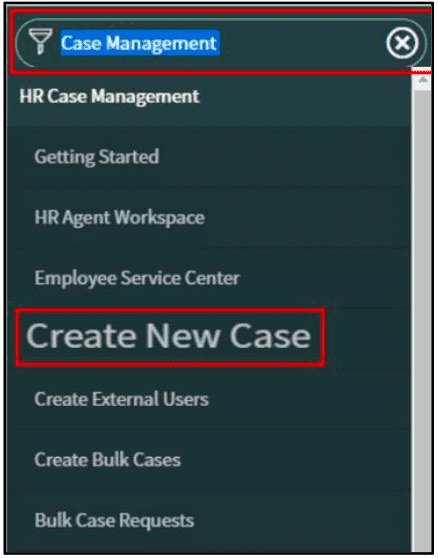
1. Locate the Filter navigator bar on the top left side of the screen – enter “Case Management” into the search bar.
2. Select “Create New Case.”
3. In the search bar, type in the name of the employee you are creating the case for and select it from the drop-down menu.

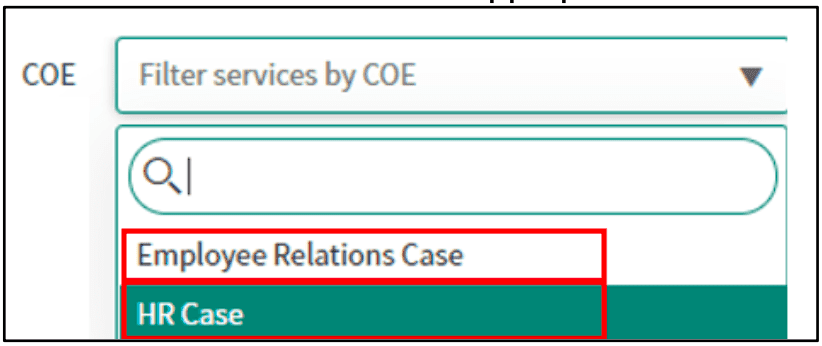
4. Navigate to the “Case Details” section and select the appropriate COE from the drop-down menu.
Question
Where can you find the Filter navigator bar on the screen?
Answer the question above the continue reading. iTELL evaluation is based on AI and may not always be accurate.
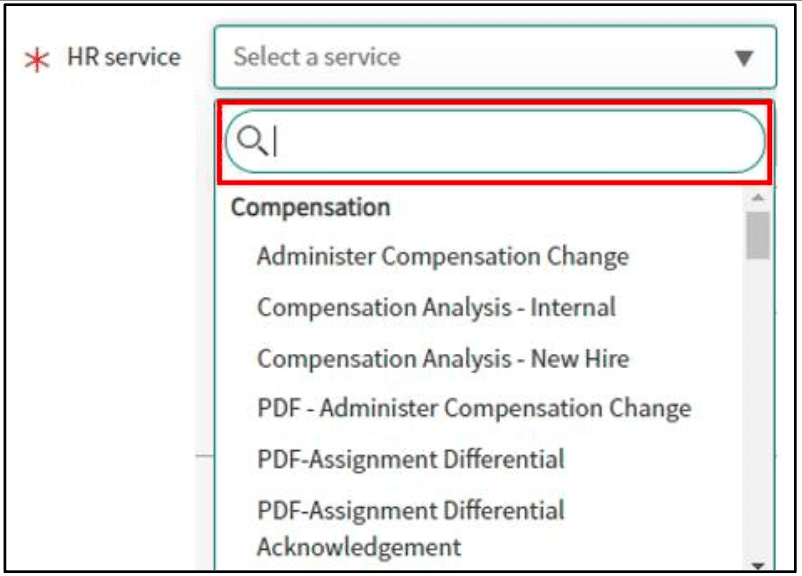
5. From the “HR service” drop down menu, select an appropriate HR service from the menu.
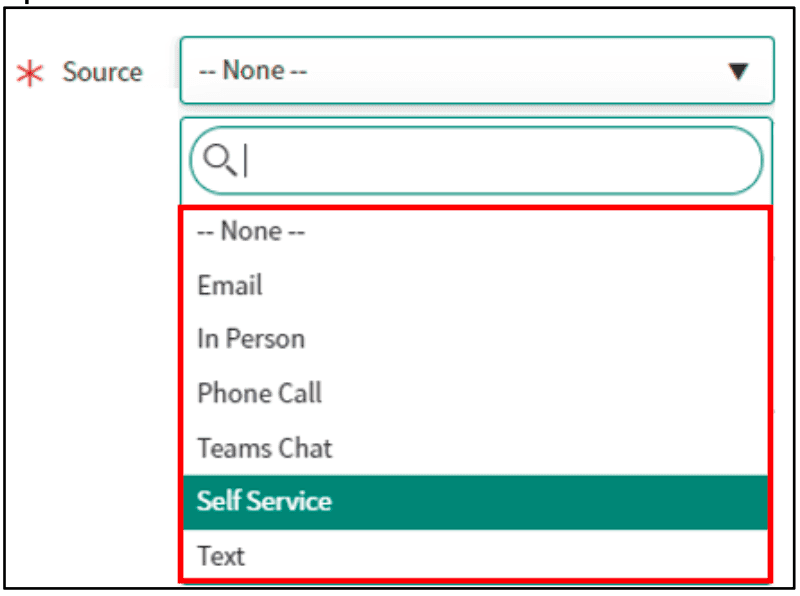
6. HR Portal Case Management SOP Locate the “Source” drop down menu and select the means of contact from the list.
7. Navigate to and select the “Create Case” button.
8. Navigate to “Short description” text box and verify that the text box was auto populated.

9. Navigate to the top of the page and select “Save” – the case has been created and is in “Ready” state and can be worked as a normal case. Proceed to HR Case Management Process section of this document.

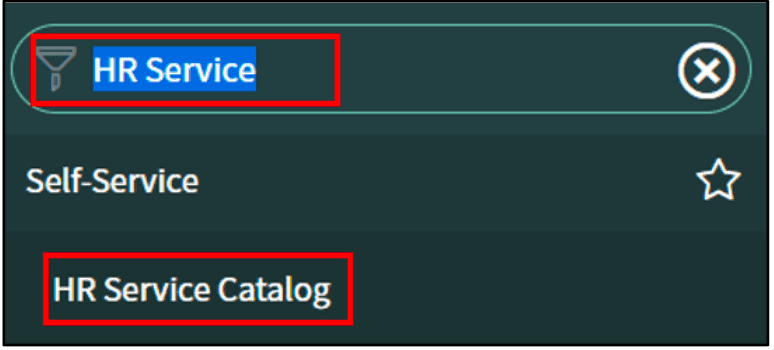
1. Locate the Filter navigator bar on the top left side of the screen and enter “HR Service” into the search bar – select “HR Service Catalog.”
OR
1. Navigate to your HR Case Dashboard and select the ‘HR Service Catalog’ tab.
2. Locate the Intake Form from the list provided that pertains to the Requesters need.
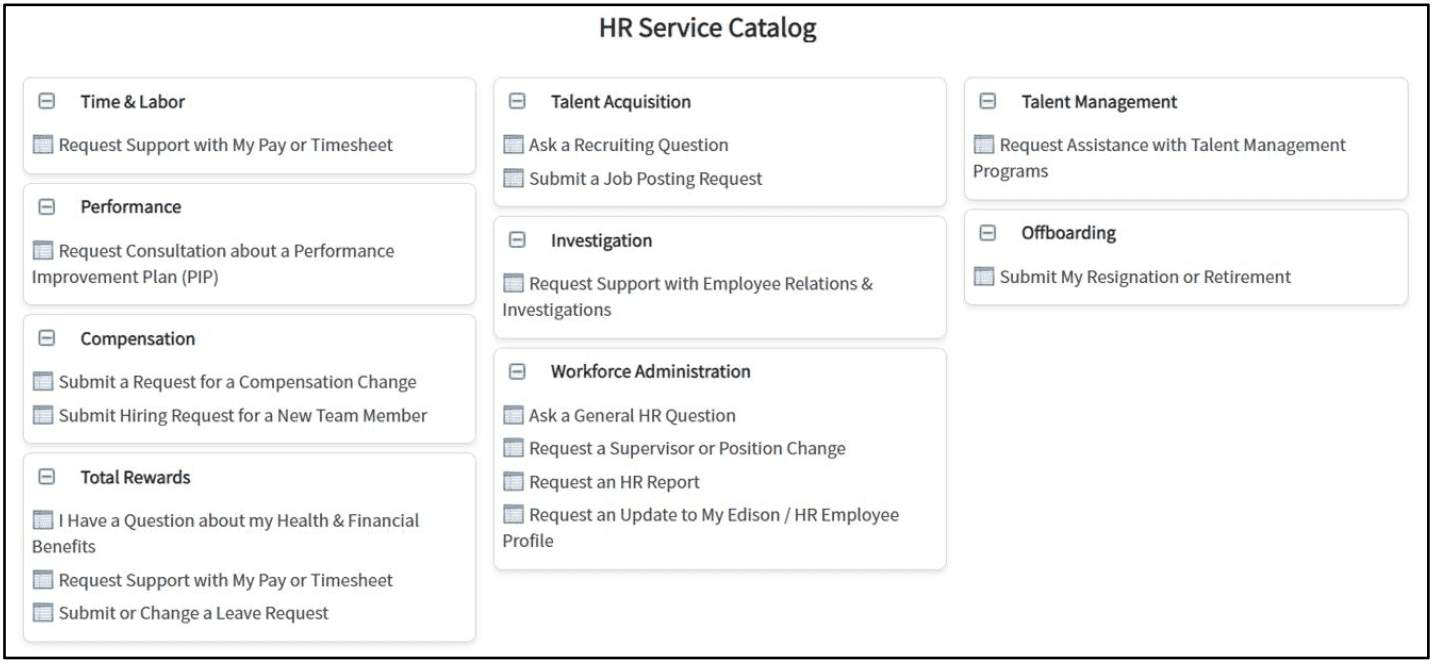
3. Complete the Intake Form on behalf of the requester and select “Submit.”
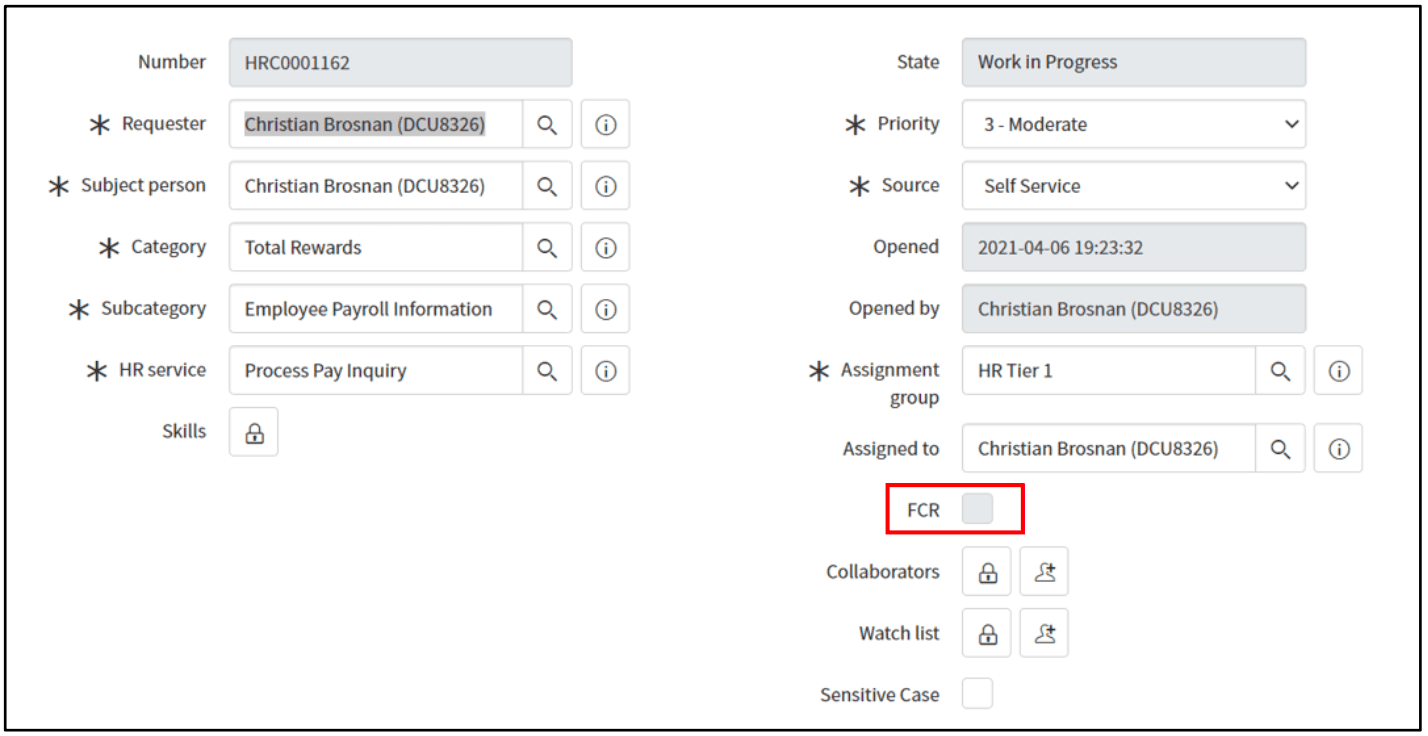
If an HR Agent is able to answer or complete a Requesters inquiry immediately, follow the steps below.
1. Complete all steps within the Basic Case Creation process of this document
2. After completing Step 9, return to this section of the guide.
3. Locate and select “FCR” within the case record – this will move the case to the “Resolved” state.
Question
What action will move the case to the 'Resolved' state?
Answer the question above the continue reading. iTELL evaluation is based on AI and may not always be accurate.
Last updated at